Formatting Tables

The following four(4) guidelines pertain to formatting tables for digital content:

  • Tables should only be used to present data; they should not be used to control page layout.
  • The row containing the column headings should be identified as a header row.
  • Use the simplest possible table configuration. Avoid extra rows or columns for spacing. Avoid nesting tables and keep cell merges to a minimum.
  • Ensure table size is controlled by percentages not pixels.

Table Use

The purpose of a table is to present data not to format document or page layout.

Good Example:

Pet TypeAgeGender
dog2 yearsFemale
cat10 monthsMale

Bad Example:

Available Pets
Bloomers 2 years old female loves to playpicture of a yellow lab
picture of a kittenRascal 10 months old male loves bird watching

Table Headings

Without the designation of column header or just heading, the content in the first row of a table is just data. It is important that the first row of the table be formatted as a heading row. This calls out the type of content the user should expect to find within the cells in that column.

Good Example:

Pet TypeAgeGender
dog2 yearsFemale
cat10 monthsMale

Bad Example:

Pet TypeAgeGender
dog2 yearsFemale
cat10 monthsMale

Adding Table Headers in Canvas

Thankfully, Canvas has a very functional table editor. Unfortunately, the editor does not automatically recognize the first row of a table as a header row. The following are instructions for how to identify the first row of a table as a header row.

  1. Select the first row of the table.
  2. From the table formatting icon, select Row.
  3. From the row options, select Row Properties.
  4. From the General Tab, select Header from Row Type.
  5. Click [OK].

Table Configuration

Tables should be simple and straight forward avoiding empty rows/columns, merging cells, and other actions that may be construed as trying to control the layout of content.

Good Example

Pet TypeAgeGender
dog2 yearsFemale
cat10 monthsMale

Bad Example

Available Pets
DogsCats
2 yearsFemale10 monthsMale
loves to playContact us to adopt.loves bird watching

Setting Table Width in Canvas

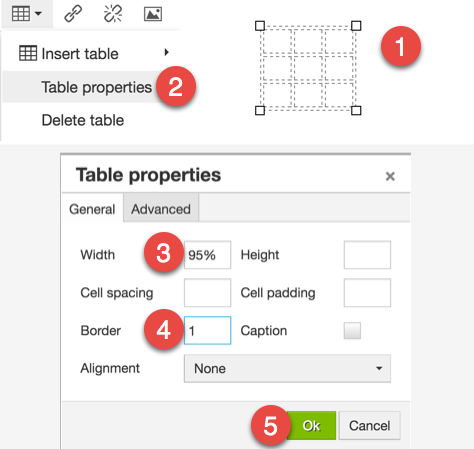
Setting the table width to calculate as a percentage rather than a specified pixel count allows the table to more easily reformat for various screen sizes. While 100% would be the most desired table width, the design of Canvas necessitates the table width to be set to 95% instead. This width is already set in the Geisel Templates, but if you are adding additional tables you can set the table width as follows:

  1. Select the table.
  2. From the Table icon, select Table Properties.
  3. From Table Properties, enter 95% in the Width field. (There is no need to set table height.)
  4. Enter 1 into the Border field to add lines around the table and the cells. (Optional, but it looks nice.)
  5. Click [OK].

Resources

Tagged : / / / /

Color Contrast

There are three(3) guidelines for the use of color in digital materials:

  • Do not rely on color alone to convey page information
  • Provide good color contrast between text and backgrounds
  • Coloring font for emphasis is unnecessary

Colorblindness

An individual affected by colorblindness will have difficulty distinguishing colors in images and text; exactly which color depends upon the type of colorblindness the individual has. Below are some images from the WebAIM website that illustrate the experience of an individual with various types of colorblindness.

Protanopia (Red deficiency)

NormalProtanopia
Image as seen by individual with normal vision
Note the green, red, and orange colors in the image.
Image as seen by individual with Protanopia
Note the lack of green, red, and orange in the image.

Deuteranopia (Green deficiency)

NormalDeuteranopia
Image as seen by individual with normal vision
Note the green, red, and orange colors in the image.
Image as seen by individual with Deuteranopia
Note the lack of green, red, and orange in the image.

Tritanopia (Blue deficiency)

NormalTritanopia
Image as seen by individual with normal vision
Note the blue, green and yellow colors in the image.
Image as seen by individual with Tritanopia
Note the absence of blue, green, and yellow in the image.

Text and Backgrounds

The article, Color Blindness and Web Design, indicates that

“Contrasting colors or colors on the opposite ends of the color spectrum work best for color blind users (e.g., white and black is the best example). A good practice may be to create the site in grey scale colors because elements should never rely solely on color.”

The idea of a website or PowerPoint that is solely designed in grey scale can seem “un-creative”, but remember the goal of the end product. In the case of the Canvas site and even a PowerPoint the goal is to communicate and deliver content. This is not to say that color cannot be employed just that it should be done thoughtfully so as not to impede the students ability to engage with the content.

Text and Background Contrast

The following are some examples of text and background color contrast. When in doubt, use the Color Contrast Checker and ask others for assistance.

Black on Light Grey

This color combination passes all levels of accessibility and can help reduce screen glare.

Light Grey on Black

Similar to the above, the color combination of light grey text on a black background passes all levels of accessibility.

Dartmouth Green on White

Surprisingly, this color combination does not pass all levels of accessibility.

White on Dartmouth Green

As in the image above, the color combination of white text on Dartmouth green does not pass all levels of accessibility.

Resources

Tagged : / / / /

Content Links

There are two(2) guidelines for links to URLs or content within digital materials:

  • Make sure links are recognizable.
  • Make sure link text makes sense on its own.

The following information outlines the meaning of these guidelines and how to accomplish them in Canvas.

Recognizable Links

There are two important factors to ensuring a link is recognizable.

  • make sure the hypertext appears in a different color consistently throughout the course
  • make sure the link, when activated appears underlined and/or highlighted to call attention to it.

Example: Refer to the student handbook for more information about Geisel policies.

Note that the link color is different from the surrounding text and that when the cursor finds the link that it becomes underlined and highlighted. See the Canvas example below to see how it should look within the learning management system.

Recognizing Links in Canvas

In Canvas, text with a hyperlink will appear blue (or another color as defined by the users browser settings). When the cursor rolls over the hyperlinked text, the text will be underlined and the cursor will change.

Descriptive Link Text

The most important feature of hyperlinks is that the description of the content available through the link it clear to the user. This is often referred to as “Human readable.” It is also important to inform the user if the link will open in a new window.

Good Examples:

Poor Examples:

Note that the last poor example is simply adding the url to the page. While this would seem appropriate, a screen reader will read the whole thing to the user which is difficult to follow.

Descriptive Links in Canvas

How descriptive a link within a Canvas page is relies on the individual designing the pages.

A bad example would be to simply place a link on the text describing the document type.
(Example: pdf)

A good example would be to write out the description of the content.
(Example: “Immunogobulin Lecture Notes”)

Resources

  • Links and Hypertext This webpage outlines the approaches to ensure accessible web and document links within digital content.
Tagged : / / /

Formatting Text

There are four(4) guidelines around text formatting for digital content:

  • Apply appropriate document structure.
    • use headings (Do not simply use larger font sizes and bolding).
    • use numbered and bulleted lists (Do not use tabs and dashes to create lists).
  • Use Adequate Font Size (10pt minimum)
  • Avoid the use of all CAPS for emphasis. (Can be difficult to read and read incorrectly by screen readers).
  • Use true text. (Do not substitute images of text for actual text).

Font color is discussed in the Color Contrast section.

Document Structure

Headings and lists give structure to the content presented digitally. Screen readers rely on headings and lists to communicate the structure of the content to the user.

Headings

Like reading a book or an article, headings let you know what that section of narrative is about and where the focus of the narrative may change within the text.

Lists

Lists let the reader

  • identify important points or items (like ingredients in a recipe)
  • outline a particular order of operations (like instructions for baking a cake)

Using the built in formatting tools in Canvas, Word, PowerPoint, and other programs ensures that the headers and lists can be properly identified by screen readers and anyone reading the documents.

Canvas Tools for Document Structure

The images below illustrate the Canvas tools in the Rich Text Editor for creating headers and lists.

Headings in Canvas

Lists in Canvas

Bullet List

Numbered List

Text Format

Properly formatting font is extremely important, particularly for individuals with varying degrees of visual acuity.

Properly formatted text will resize on a screen making it easy for everyone to read it on any device sizes such as iPads, cell phones, and laptop screens.

 Common tips for font formatting include:

  • Select readable font types
    • straight fonts (san-serif) read well online (Arial, Helvetica, Tahoma, Trebuchet, Verdana)
    • curved fonts (serif) fonts do not read well online (Book Antiqua, Georgia, Times, Times New Roman)
  • Select appropriate text sizes (minimal acceptable font size is 10 pt)

Canvas Tools for Text Formatting

Font Type

The Canvas default font is Open Sans. It is not possible within the Rich Text Editor to change the default Canvas font.

Font Size

The default font size is 14pt. The image below illustrates the font size options within the Canvas Rich Text Editor.

Font Emphasis

Bold and Italic can be used to place emphasis on text when necessary.

  • Bold should not be used to create headers or emphasize large amounts of text.
  • Underlining should not be used unless required for proper reference styles as underlined text denotes a hyperlink.

True Text

True text simply refers to the composition of words and sentences using appropriate characters (text, punctuation, characters, symbols).

Occasionally, particularly in PDF documents, the “text” that appears on the page is actually a scanned image of text. This is problematic because images of text cannot be

  • read by screen readers and other assistive technologies
  • searched, so a student trying to find specific content within the document will not be able to do so via a text search.

True Text vs Images

True Text

The quick brown fox jumps over the lazy dog.

Note that you can select a specific word or multiple words in the sentence above.

Text as Image

text as image

Note that you cannot select words in the sentence above.

Resources

  • Semantic Structure This webpage outlines the appropriate use of headings and lists in designing document structure.
Tagged : / / /

Web Conferencing

Web conferencing or synchronous online conferencing allows students and instructors to meet online and from a distance. Frequent uses for web conferencing include online courses, presentations by lecturers at a distance, small group conferences, and even office hours. Depending on the tool being used, web conferences can be simple, passive engagement or extremely robust, active engagement experiences.

Adobe Connect

Adobe® Connect™ is a web conferencing platform for web meetings, eLearning, and webinars that work on virtually any device. Adobe Connect is currently used in Geisel by TDI, TDC and the Family Medicine Clerkship for both simple and more robust interactions.

Device Agnostic (with limitations)

BlueJeans

BlueJeans is a video conferencing service that is device ubiquitous and allows for screen sharing, video sharing, chat and voice.

Device Agnostic

Conferences in Canvas

Conferences in Canvas are primarily used for virtual lectures, virtual office hours, synchronous student presentations, and student groups. The tool used by Canvas to provide the Conferences feature is called Big Blue Button.

Google Hangouts

While not built as a web conferencing system, Google Hangouts enables video conferencing and meetings (including screen sharing), text chats and voice calls. Individuals (up to 10) can join from anywhere on any device.

Device Agnostic

WebEx

WebEx, by Cisco, provides web conferencing, online meeting, video conferencing and webinar applications. How robust the experience is will depend upon the licensed services. WebEx is used at DHMC, but it not a service supported by Geisel.

Device Agnostic (with limitations)

Zoom

Zoom is a Dartmouth supported video conference system that lets Dartmouth users host engaging meetings and instructional sessions. For more information please refer to the links below. Geisel School of Medicine faculty and staff should contact Geisel.Instructional.Technology@dartmouth.edu for additional information and training.

References

The following are a list of references about the use of web conferencing in teaching and learning.

Tagged : / / / /

Video

The use of video in education has traditionally been used to reproduce traditional methods of teaching, such as a vodcast or lecture capture. However, video can be used not only to convey “knowledge”, but also to provide feedback, record multimedia “stories”, and evaluate skills among others.

Be aware that video may not be accessible by individuals with visual or hearing impairments and thus should ideally be accompanied by a transcript and close captioning.

Learning Management System Tools

Canvas Media Tool*

Canvas, Geisel’s Learning Management System, affords all users with the opportunity to record audio using the media comment tool available from within the Rich Text Editor. This tool can be used to add audio to course pages, discussions, assignment feedback and even quizzes.

Software Applications (Free)

Panopto*

Panopto is a video hosting and streaming platform which provides faculty with the ability to:

  • Pre-record course content
  • Manage video content (search, share/permissions, and edit)
  • Embed videos in Canvas
  • Add automated machine captions
  • Add interactive quizzes within the video

Software Applications (Fee)

Camtasia*

Camtasia (Mac) and Camtasia Studio (PC) allow users to create, edit, and produce video from a variety of sources including screencast, PowerPoint, and built from scratch with images, movie clips, etc. The product is easy to use and provides a variety of advanced editing options at an affordable price. Videos created in Camtasia can be uploaded into Panopto for streaming and embedding in Canvas.

Check with the Dartmouth Computer Store for educational pricing.

References

The following are a list of references about the use of video in teaching and learning.


*Tools that appear with an asterisk on the pages are commonly used at the Geisel School of Medicine. Contact the Geisel Information Technology office if you would like more information about any of the tools within this guide.

Tagged : / / / / / / / / / / /

Time Management

Time management is probably one of the most difficult tasks to master when implementing active learning strategies in the classroom. While not specifically an instructional tool or technique, good time management is necessary for the active learning classroom to run smoothly. This page lists a few apps that can be used to assist instructors and students with managing engagement during class time.

Alinof Timer (Mac)

Alinof Timer is a very easy to use timer for your Mac. Just set the desired time using the mouse scroll and press «start».
Once the time elapsed, a message with a sound alarm will be displayed on the screen.

Clock app

Clock (the app) is installed on all iPhones and iPads. Featuring various functions, it has an easy to use Timer as well as a Stopwatch function.

Free Timer (Windows)

Free Timer is a simple, easy to use timer for PC users.

Online Timer

Online Timer is a browser based countdown timer.

Timer+

Timer+ is an iPad/iPhone app that lets you set multiple timers at once! Time by the second, minute or hour.

References

The following are a list of references about managing interactive class sessions in teaching and learning.

Tagged : / / / / /

Spaced Learning

Spaced learning is a learning practice that reinforces student learning and long term memory retrieval of a concept by repeated exposure to that concept over a period of time. The intervals between repetitions and methods of repetition vary depending on the content and the overall goals.

Anki

Anki allows users to create flashcards for drill and practice study. The flashcards supports images, audio, video, and scientific notation.

Device Agnostic

Cerego

Cerego is an adaptive learning technology platform based on principles of neuroscience and cognitive science to help people learn faster and remember longer. Cerego supports anytime learning accessible via laptop, mobile phone, and tablet.

Flashcards Deluxe

Flashcards Deluxe is an easy to use, yet powerful flashcard app which you can use to study just about anything you want. You can create your own decks, use an existing deck that someone has already made, or you can search Quizlet’s huge library from within the app. This app also has its own smaller “Shared Library” which you can search and download from.

Device Agnostic

Quizlet

Quizlet allows users to create flashcards, tests, and study games that make learning fun and engaging for students. Quizlet works online or via the Quizlet app. Anyone can create and share Quizlet interactions free. Just create an account.

Device Agnostic

QStream

Qstream is widely used by some of the world’s top medical centers and healthcare leaders to educate clinicians on a range of topics, including patient safety, infection control, emergency medicine, palliative care and advanced life support. Developed at Harvard Medical School, Qstream is scientifically proven to increase knowledge retention.

Device Agnostic

Resources

The following are a list of references about spaced learning.

Tagged : / / / / /

Presentations

While presentations are most often attributed to the lecturer presenting content to the students, student presentations whether as individuals or in groups, afford the students a chance to develop skills in oral communication, peer-teaching, and listening among others. The more practice a student has speaking to and working within groups, the more comfortable the individual will feel when delivering a presentation to professional colleagues, patients, and other audiences.

Software and iPad

PowerPoint*

PowerPoint is a slide show presentation program developed by Microsoft. Geisel supports Microsoft PowerPoint for Mac, PC, and the iPad.

Keynote

Keynote is a slide show presentation program developed by Apple.

iPad Apps

Final Argument

Final Argument is an iPad app that allows the user to create non-linear, branching presentations. The app is designed to allow users to incorporate content from multiple sources using PDF, PowerPoint, Keynote, an interactive whiteboard, and multimedia. Final Argument presentations can also be recorded directly from the app.

SlideShark

SlideShark allows iPad users to easily view and present PowerPoint slides with animations, fonts, colors, graphics, hyperlinks and videos intact. Presentations can not be generated from within SlideShark itself; however, this tool can be used to present live to attendees in remote locations.

iPad and Online

Movenote

Movenote is available as an iPad app and online. It allows users to record a presentation, including the device camera, to create a picture-in-picture affect for your presentation. Import content from multiple sources then simply record the presentation as you swipe the slides to advance through the presentation. Presentations are shared by sending a link to the recipient and can be viewed without the app.

Device Agnostic

Prezi

Prezi is a non-linear presentation tool that works online and on the iPad. Prezi allows users to collaboratively create interactive, multi-dimensional presentations in a way that other presentation tools cannot. Incorporate existing resources or build from scratch. Prezi can handle multimedia, hyperlinks, other presentation files and more.

Device Agnostic

Multi-device Apps

2Screens

2Screens – Presentation Expert is an iPad app that makes it easy for users to present multiple content types within the same app.  Manage and view your documents; use the built-in web browser to load web contents and download files; make notes on the whiteboard or presentation slides. To show your work, you can stream the iPad screen display to AirPlay or a browser URL.

Doceri

Doceri is a scalable suite of products that allows a teacher or presenter to control a computer’s desktop, to control audiovisual technology, and to annotate any presentation in real time with the iPad.

AirSketch

Air Sketch turns an iPad into a wireless whiteboard allowing users to Annotate PDF documents and images. Just launch Air Sketch on the iPad and open the specified URL from any HTML-5 compatible browser on a computer running on the same wireless network. Your photos and drawings show up natively in the browser and update almost instantly.

References

The following are a list of references about the use of presentations in teaching and learning.


*Tools that appear with an asterisk on the pages are commonly used at the Geisel School of Medicine.

Tagged : / / / / / / / / /

Student Response Systems

In-class polling or student response systems (SRS) affords faculty with the opportunity to actively engage students during a learning experience by posing questions to the class and asking that the students discuss the answers; apply ideas, skills, and problem-solving in class; predict outcomes; or draw connections between concepts or ideas. In-class polling also provides faculty with feedback on student learning and possible misconceptions.

Kahoot!*

Kahoot is a game based polling tool. It allows presenters to develop and control the presentation of polling questions. Students can earn points for each poll completed either as individuals or as teams. Kahoot has a 4000 player limit and allows for unlimited questions per Kahoot, though 10 – 20 is the most manageable.

Device Agnostic

Mentimeter

Mentimeter is a cloud-based tool that lets you engage and interact with your audience in real-time. You set the questions and your audience can give their input via a mobile phone or any other Internet connected device. (Per the Mentimeter website)

The free account allows unlimited responses to a limit of two poll questions.

Device Agnostic

NearPod*

Nearpod is an application that allows instructors to embed polling and activities within a presentation. Then using the iPad in class, the instructor can present the lecture while the students use their iPad or computer to engage with the materials, respond to polls, and participate in activities.

The free option allows the user to create 10 presentations with up to 30 participants each.

Device Agnostic (participation)

PickMe

Pick Me! is a simple app that allows instructors to randomly select students.

PollEverywhere*

Polleverywhere.com is a browser-based application that allows for votes and feedback to be solicited from individuals via text messaging and/or Twitter. Results are displayed on the web or within a presentation (PowerPoint slide) in real time.

The free account allows an unlimited number of polls, and up to 40 votes per poll. Just right for use with small groups.

Geisel School of Medicine has an institutional license for PollEverywhere. Please contact Geisel Instructional Technology for more information.

Device Agnostic (participation)

SmarTest

The SmarTEST Apps are designed for instructors to easily create and conduct interactive group quizzes and activities in the TBL classroom.

 Visit Website

SMSPoll

SMS Polls are created online and students respond by sending an SMS text message to a local phone number. The results are updated in real-time, in your PowerPoint presentation or on the SMS Poll website.

The free account allows for unlimited polls, 15 votes per poll and a limit of 300 total votes per month. This would equate to approximately 20 polls assuming 15 responses per poll. A bit limiting, but still possible with small groups.

Device Agnostic (participation)

TurningPoint

TurningPoint is a student response system developed by Turning Technologies, Inc. The system consists of the software, a receiver, and a clicker which allow faculty to provide students with opportunities to engage more actively and openly within a course.

References

The following are a list of references about the use of polling/student response systems in teaching and learning.


*Tools that appear with an asterisk on the pages are commonly used at the Geisel School of Medicine.

Tagged : / / / / / / /